
Concord Nissan INFINITI
Quote Process: Step-by-Step Guide
This guide walks through the complete process for submitting a quote using Parts Trader, NNAnet2.0, Opstrax, DBS, and Tekion tools.
Step 1: Access Quote Request in Parts Trader
1.1 Open the Parts Trader Tool Parts Trader
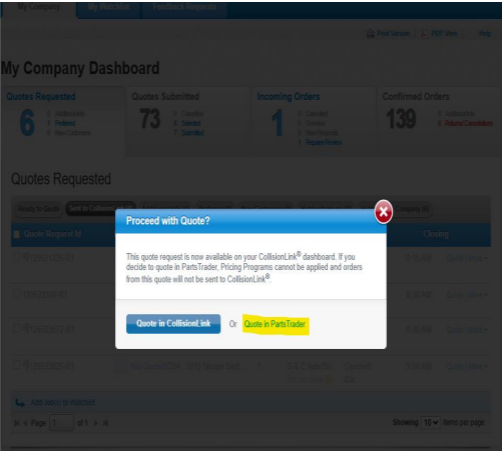
1.2 Go to the Quotes Requested tab.
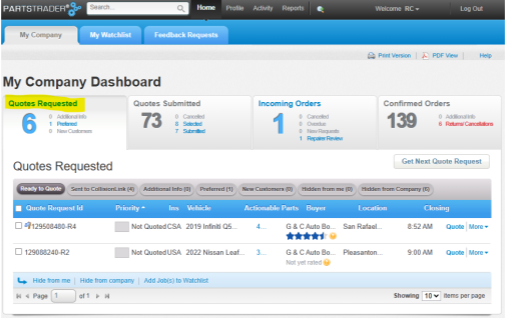
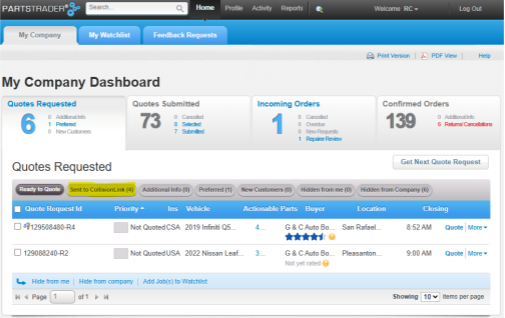
1.3 Click the ‘Sent to Collision link’.
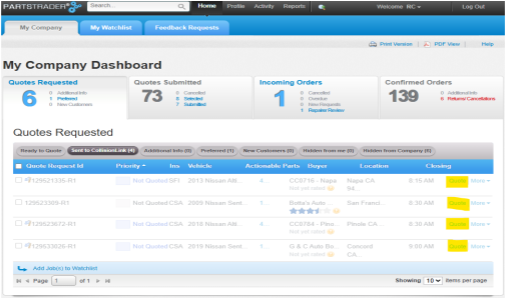
1.4 On the right side of the screen, click the specific Quote you need to process.
1.5 Click the “Quote in Parts Trader” tab to begin.
Step 2: Gather Key Information
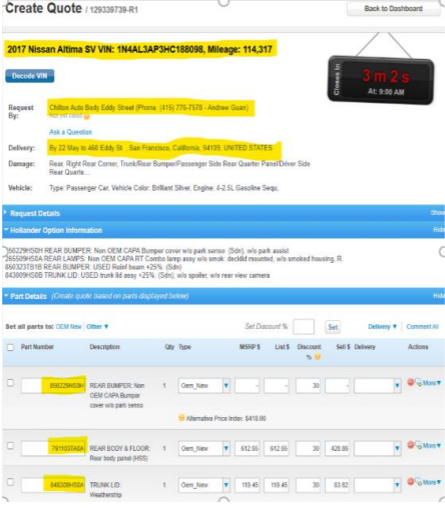
2.1 On the Parts Trader screen, copy or take note of:
VIN Number
Phone Number
Body shop name & address
Part number(s)
Tip: Use Notepad to store this temporary information.
Step 3: Use NNAnet2.0 to Verify Parts
3.1 Open NNAnet2.0 NNAnet2.0
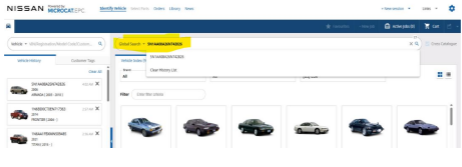
3.2 Navigate to the Manufacturer Catalougue (EPC)
3.3 Enter the VIN in the global search bar and press Enter.
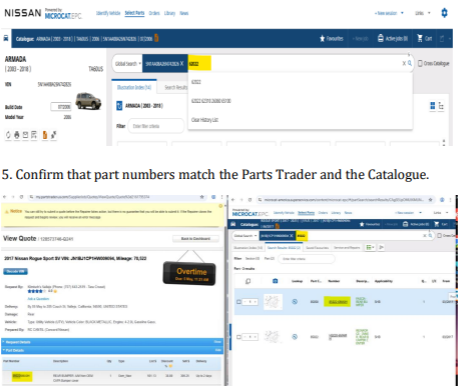
3.4 Input the first five digits of each part number.
Step 4: Check API and Return to Parts Trader
4.1 Go back to the Parts Trader Tool.
4.2 Check for an Alternative Price Index (API)
If found, copy or note the API and part number.
If not, proceed to the next step.
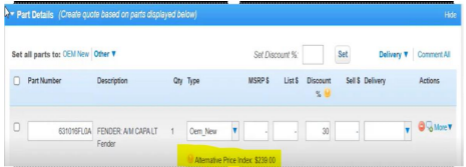
Step 5: Validate Part Pricing in Opstrax
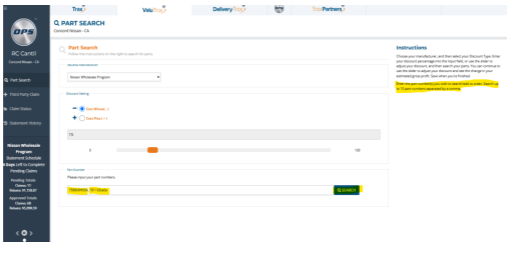
5.1 Open the Opstrax Tool and click the ‘Valutrax tab’ OPSTRAX
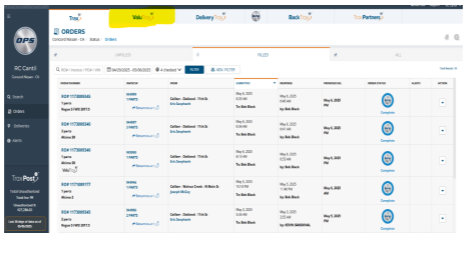
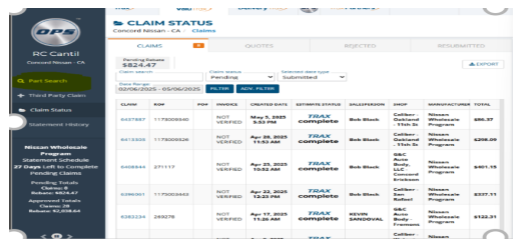
5.2 Select the ‘Part Search tab’.
5.3 Adjust discount settings:
15 fo Nissan
37 for INFINITI
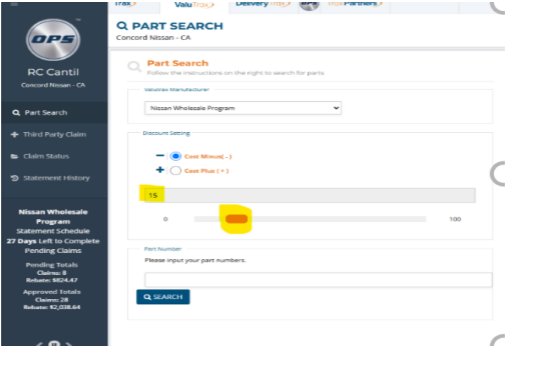
5.4 Enter the part number and click ‘Search’.
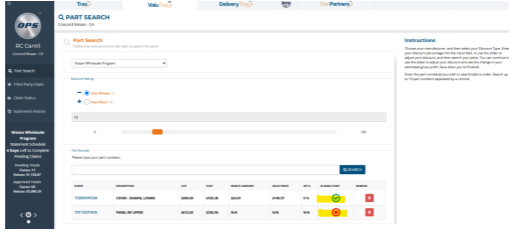
5.5 Go to the Eligible Part tab:
✔ = Eligible for discount
✖ = Not eligible (use pricing code "15: cost + 10" in Tekion)
Step 6: Confirm Availability in DBS
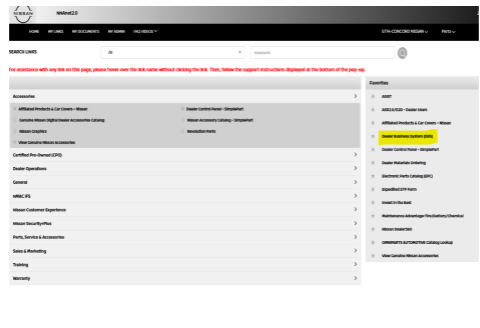
6.1 Go to NNA.net and open the DBS Tool NNA.net2.
6.2 Hover over the Parts tab and select ‘Parts Order Management’.
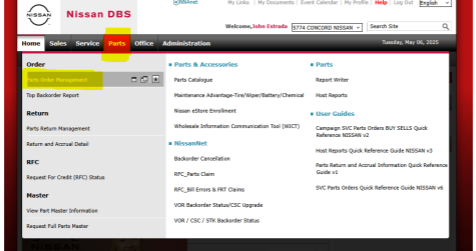
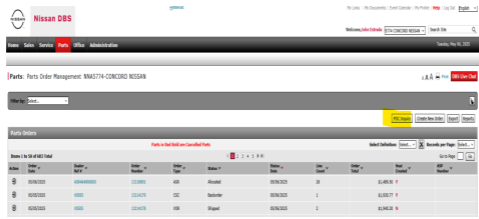
6.3 Click ‘PDC Inuiry’.
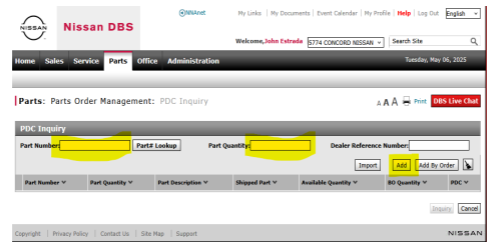
6.4 Enter the part number and quantity, then click ‘Add’.
- For Infiniti parts: Use VOR Inquiry and confirm you're in the Infiniti dealership view.
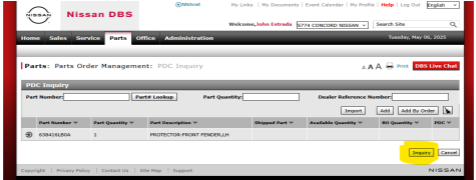
6.5 Hit ‘Inquiry’
Step 7: Create Sales Order in Tekion
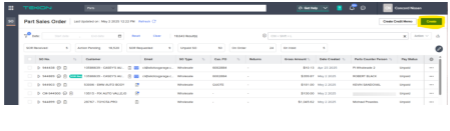
7.1 Open the Tekion Tool and go to the ‘Sales Order tab’ Tekion
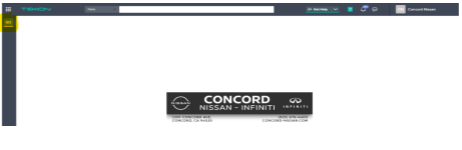
7.2 Click ‘Create’ in the top left corner.
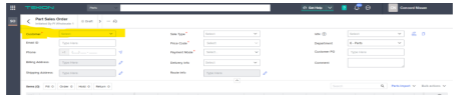
7.3 Enter the phone number from the request on the ‘Customer tab’ and click ‘Search’.
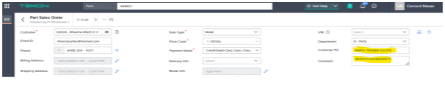
7.4 Once the customer appears:
In the Customer PO field, type “Parts Trader Quote”.
Add the VIN in the Comments field.
7.5 Under Item Name, enter the verified part number(s).
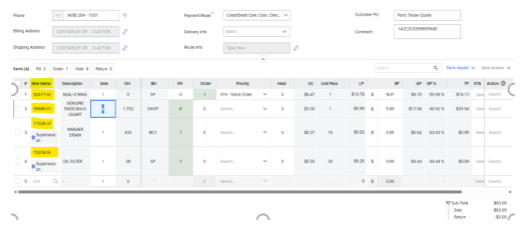
7.6 Apply the:
Price Code (Price Level Condition)
Program Discount(s) if eligible
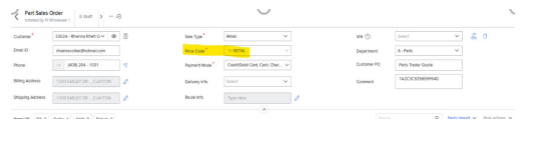
7.7 Click ‘Update Quote’ to save changes.
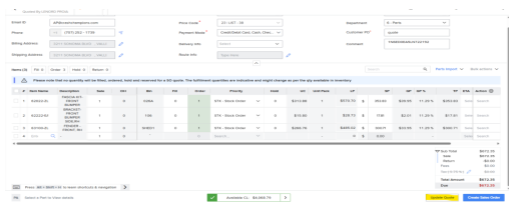
Step 8: Finalize & Submit the Quote
8.1 Return to Parts Trader Tool.
8.2 Enter the Delivery Time Frame (Note: Bumpers always = 2–3 days).
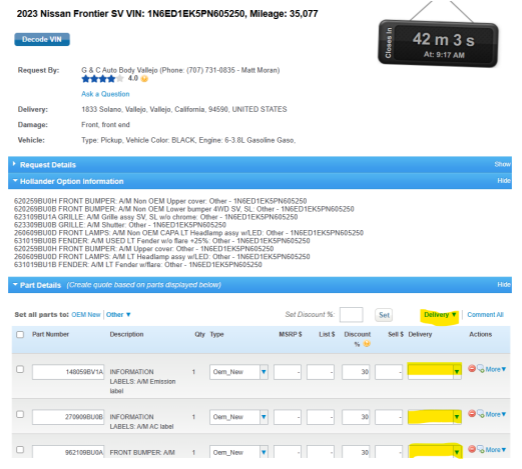
8.3 Copy the ‘SO Number’ from Tekion.
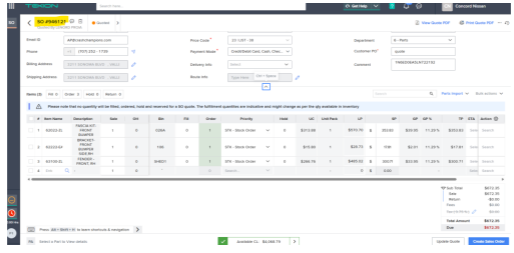
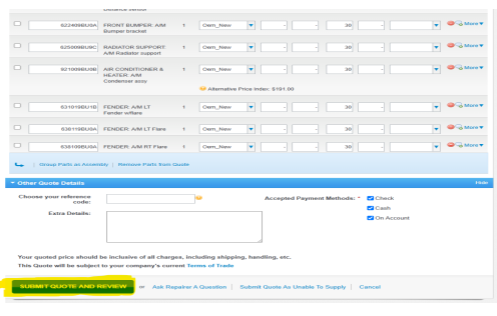
8.4 Scroll to the bottom of the quote screen.
8.5 Paste the SO Number into the Choose Your Reference Code field.
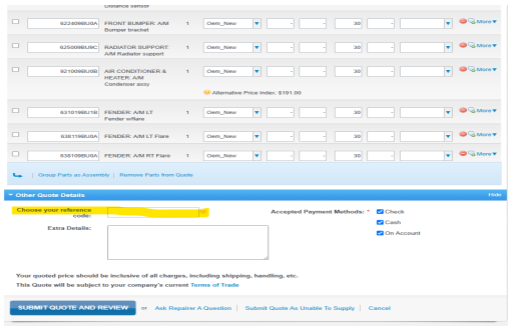
8.6 Click ‘Submit Quote’.