
Concord Chevrolet
Quote Process: Step-by-Step Guide
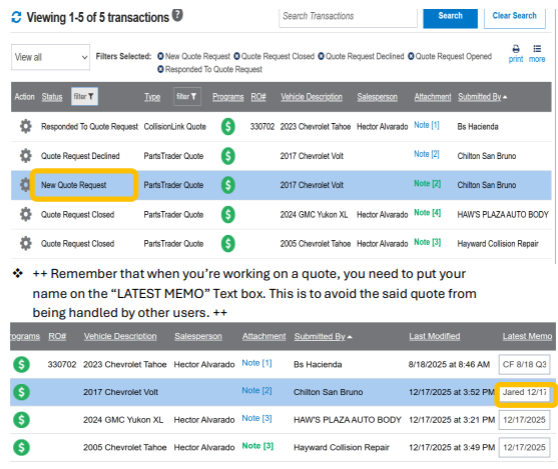
Log in to OEC and, then go to collision link tab. Check “NEW QUOTE REQUEST”.
Note: Status should be under “New Quote Request”.
Once the quote is open, check all the items to see if it's all verified in EPC Catalog.
The red X, yellow, and blue question mark is needed to check in Catalog.
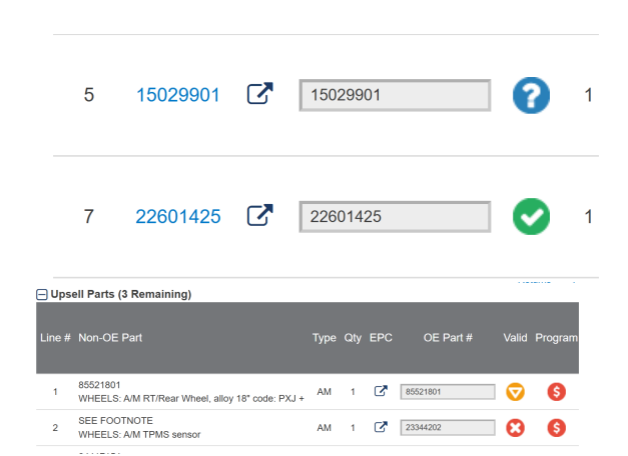
❖ Red means you need to find an appropriate part as the part number listed is N/A to the current VIN (car) |
❖ Yellow means you need to verify if the part listed can be seen in EPC when searched using the applicable VIN (car) |
❖ Blue means that the part number is most likely superseded in these cases to go directly to Parts work bench to get it. |
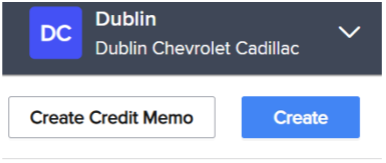
Once done, go to “tekion” and "Create Sales Order”.
You will receive a pop-up message “Enter Parts User Code”.
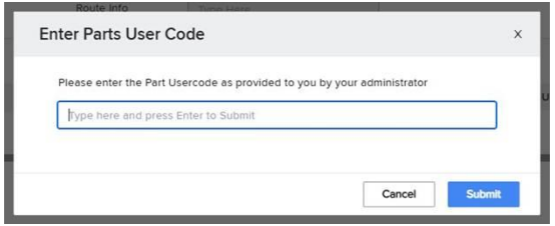
NOTE: User Code is 52.
Search the customer information on the “Customer Box” using the phone
number or, the body shop name.
-Make sure to match the Body Shop Name, and Address.
Sale Type Box – This is where you Select “WholeSale”.
Price Code – Price code is at “130 | List 30%”, 125 | 25%, Cost +10%
Customer PO – Put the “Vehicle model and VIN”.
Comment – P/ A
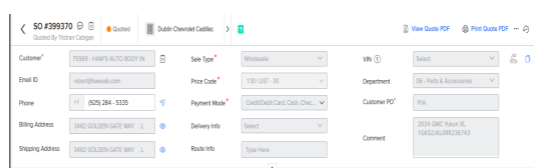
Once the account is verified, Click on Export to DMS located at the bottom besides “Respond to Quote”

Item Name – Where you enter part #, make sure it matches the OEC.
Priority – Select “CS01”.
Action – This area where you add comments if the delivery will be coming from a different facility other than Reno, NV, if the item is in Back order, and if the item is eligible for BTC.
Once done, make sure that the LP and Selling Price in OEC matches in Tekion.
If the selling price in tekion or in OE is just cents higher, please follow the higher protocol.
E.g. Tekion SP: $48.92 |
OEC SP: $48.91 |
Update the SP in OEC and follow the Tekion selling price.
Once confirmed and verified, hit “Save As Quote” Button.
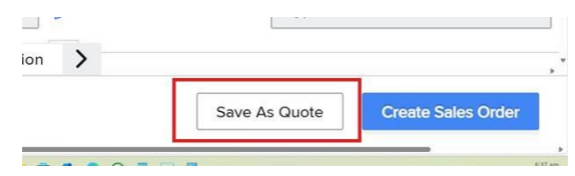
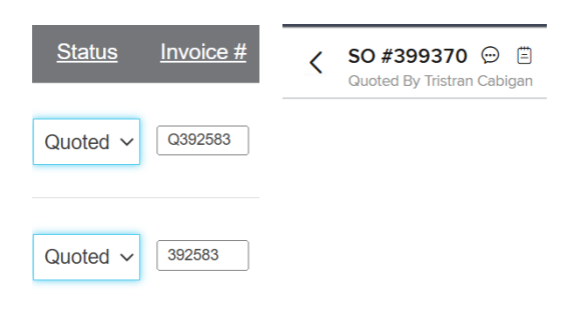
Tekion will generate a “Sales Order #”, copy and paste it in OEC on the “Quote #” section.